You’ve joined the Partner Program, or you’re close. You open YouTube Studio and see views everywhere: on the dashboard, under each video, in the charts. But where is the money? When you finally find a dollar figure, it says $12 and you have no idea whether that’s real, final, or the start of something bigger.
The short answer: open YouTube Studio on a computer, click Analytics, then the Revenue tab at the top. That shows your estimated earnings for the channel. For a single video, go to Content, hover the video, click its Analytics icon, then open the Revenue tab. The numbers appear about two days after they’re earned, and they’re estimates until YouTube adjusts and finalizes them. The final amount you’re paid is in AdSense for YouTube, not in Studio. If you don’t see a Revenue tab at all, your channel isn’t in the Partner Program yet.
The quick answer: where your YouTube money lives
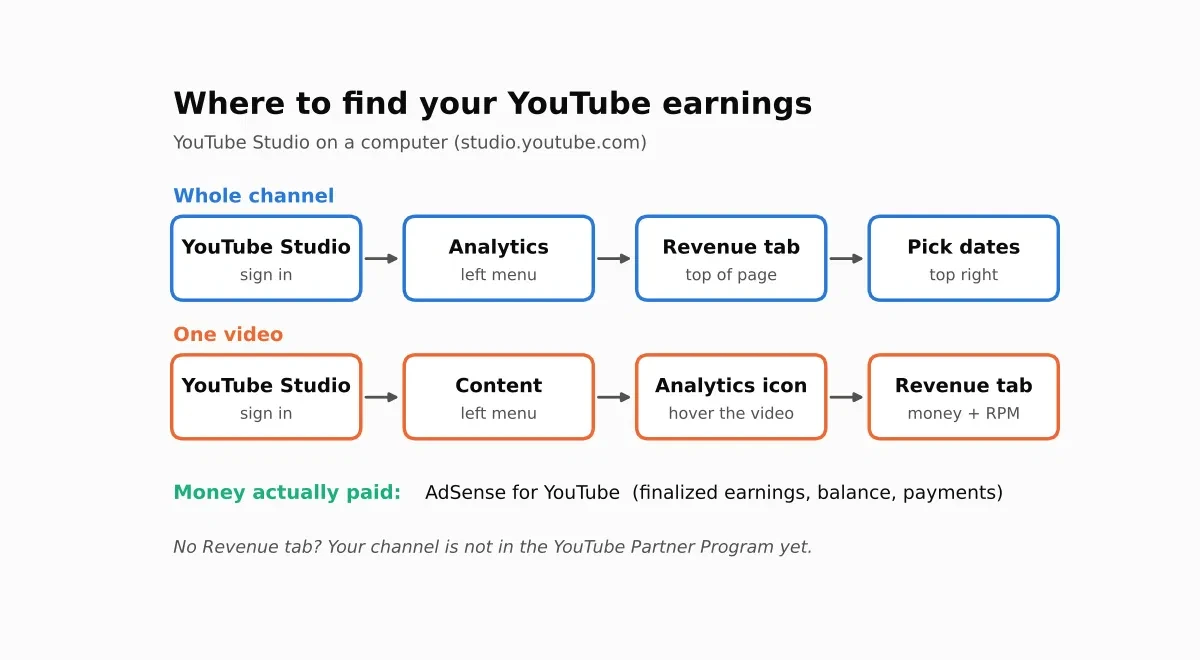
| Where you look | What it shows | How final is it? |
|---|---|---|
| Channel total (Analytics → Revenue) | Estimated earnings for the whole channel over the dates you choose | Estimated. Can still change |
| One video (Content → video → Analytics → Revenue) | Estimated earnings and RPM for that video | Estimated. Can still change |
| Money actually paid (AdSense for YouTube) | Finalized earnings, your balance and payments | Final |
How to see your total channel earnings
These steps are from YouTube’s Check your YouTube revenue Help page. Use a computer; the full revenue reports are easier to read there than in the phone app.
- Sign in to YouTube Studio.
- In the left menu, select Analytics.
- From the top menu, select Revenue.
- Choose the date range you want. Start with the last 28 days, then compare month by month.
The Revenue tab is split into sections. The three you’ll use most are:
- How much you’re earning: your estimated revenue for the period, plus the views it was based on.
- How you make money: the split between ad revenue sources, including Watch Page ads and Shorts Feed ads. Premium revenue is counted inside these lines.
- Content performance: revenue broken down by format, such as videos, Shorts and live streams.
If you only want one number, use How much you’re earning over the last 28 days. Then open Content performance to see which format is doing the work.
How to see how much one video made
- Sign in to YouTube Studio and select Content in the left menu.
- Hover over the video you want to check, then click its Analytics icon.
- In the video’s analytics page, open the Revenue tab.
That gives you the video’s estimated revenue and its RPM over the period you’ve chosen. Comparing videos this way is the fastest route to learning which topics and lengths pay best for your channel.
If you want every video in one table, switch to Advanced mode from the Analytics page. Advanced mode lets you sort and export the data, which helps for monthly reviews.
Checking on your phone
The YouTube Studio app shows revenue too, but its layout changes more often than the computer version, and some reports are only fully available on the computer. If you’re checking on a phone, look for the Revenue figures under Analytics. If you can’t find them quickly, open Studio in a browser on your computer. The steps above are the reliable route.
YouTube also has an Earn page that tracks your progress toward payment and shows payment history. Its exact layout may differ from what’s described here, so treat the Earn page as the place for your status and the Revenue tab as the place for your numbers.
What each number means
| Figure | What it means in plain English |
|---|---|
| Estimated revenue | What YouTube expects you to earn from ads and other revenue sources, before final adjustments |
| RPM | Your earnings per 1,000 views, after YouTube’s share. This is the number to compare across videos and months |
| Views | The count of views the revenue is based on. Shorts use engaged views for revenue |
| Revenue sources | Where the money came from: Watch Page ads, Shorts Feed ads, memberships, Premium, Super Chat and others |
YouTube defines RPM as revenue per 1,000 views after YouTube’s share, and says it includes ads, channel memberships, YouTube Premium and Super Chat or Super Stickers (YouTube Help). That’s why your RPM in Studio can sit above a pure ads estimate. Our YouTube RPM explained guide covers the rest of the terms, including CPM.
Why the number is “estimated” (and when it becomes real)
Studio’s figure is designed to move. According to YouTube’s Help page, the sequence is:
- Revenue appears after about 2 days. Earnings from a day don’t show immediately.
- The first adjustment happens after about 1 week.
- The second adjustment happens in the middle of the following month.
- Finalized earnings are added to your AdSense balance between the 7th and 12th of the next month.
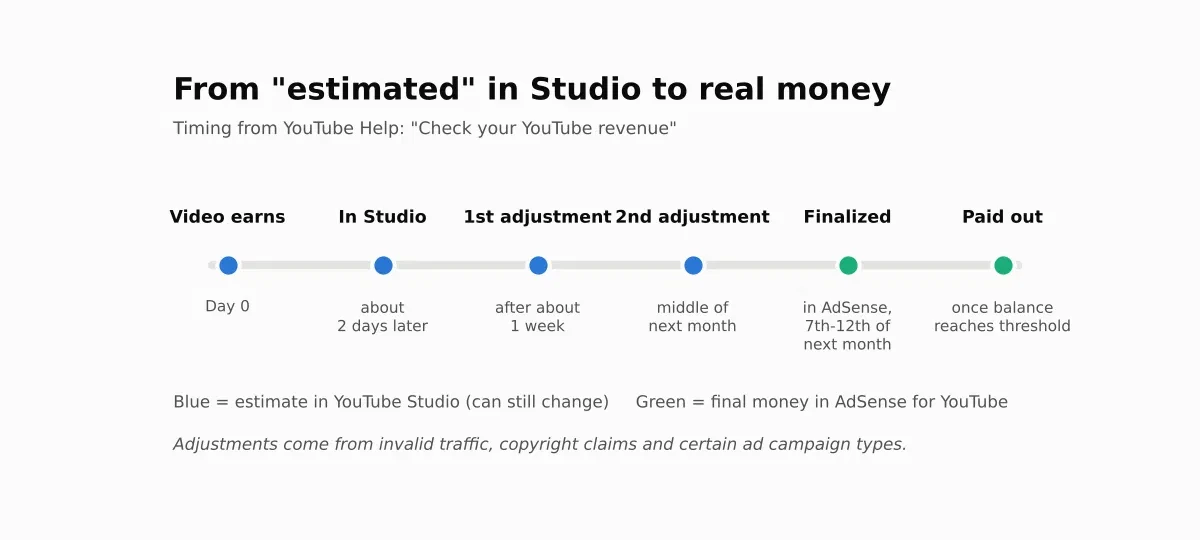
Adjustments cover invalid traffic, copyright claims and disputes, and certain ad campaign types. So a number that’s $112 today can settle at $104 next month, and the lower figure is the one that gets paid.
For the full payment calendar, including the $100 threshold and when money reaches your bank, see how YouTubers get paid.
No Revenue tab? Here’s why
If you don’t see a Revenue tab, your channel is most likely not in the YouTube Partner Program yet. Two levels matter here:
- The fan-funding level needs 500 subscribers, 3 public uploads in the last 90 days, and either 3,000 watch hours in 12 months or 3 million Shorts views in 90 days. It unlocks memberships, Super Chat, Super Stickers, Super Thanks and Shopping, but not ad revenue (YouTube Help).
- The ad-revenue level needs 1,000 subscribers plus 4,000 qualified watch hours in 12 months, or 10 million qualified Shorts views in 90 days (YouTube Help).
From February 1, 2027, new applicants for ad and Premium revenue will need 1,000 subscribers plus 8,000 qualified watch hours in the last 365 days, or 20 million qualified Shorts views in the last 90 days. Existing partners aren’t affected by that entry bar. Shorts revenue sharing will also need 10 million qualified Shorts views in the last 90 days, according to YouTube’s official announcement. Our guides on how to check if a channel is monetized and the 2027 changes cover the details.
Turn your Studio numbers into a useful RPM
RPM is the number that makes Studio’s figures comparable with anything else. The formula is simple:
RPM = estimated revenue ÷ views × 1,000
Work it out per format, not just for the whole channel. Shorts and long videos earn at very different rates, and a mixed total can hide what’s happening. Then compare your RPM with the calculator’s range for your niche and country, which uses the same method described on our methodology page.
Example 1: a US tech channel with 8-minute videos
In the last 28 days, a US tech channel with 8-minute videos has 42,000 views and $168 in estimated revenue.
- RPM: $168 ÷ 42,000 × 1,000 = $4.00
- Calculator range for US technology videos of 8+ minutes: $2.64 to $10.89
- Result: inside the range, in the lower half.
Your RPM is real and sensible. The next question is what would move it, which is usually audience country, topic and video length.
Example 2: a Canadian cooking channel with Shorts and videos
A Canadian cooking channel has 25,000 views and $11.50 in estimated revenue over the same period. Its overall RPM is:
- Channel RPM: $11.50 ÷ 25,000 × 1,000 = $0.46
That looks far below the calculator range, which is alarming. Split it by format, and the picture changes:
- Shorts: 15,000 views earned $1.20. RPM = $1.20 ÷ 15,000 × 1,000 = $0.08. The calculator’s Canadian Shorts range is about $0.03 to $0.13, so this sits inside it.
- Long videos under 8 minutes: 10,000 views earned $10.30. RPM = $10.30 ÷ 10,000 × 1,000 = $1.03. The calculator’s Canadian cooking range for under-8-minute videos is $0.75 to $3.37, so this also sits inside it.
Nothing is broken. The channel total was low because 60% of its views were Shorts, which earn a fraction of what long videos earn. That’s the mix talking, not the rate.
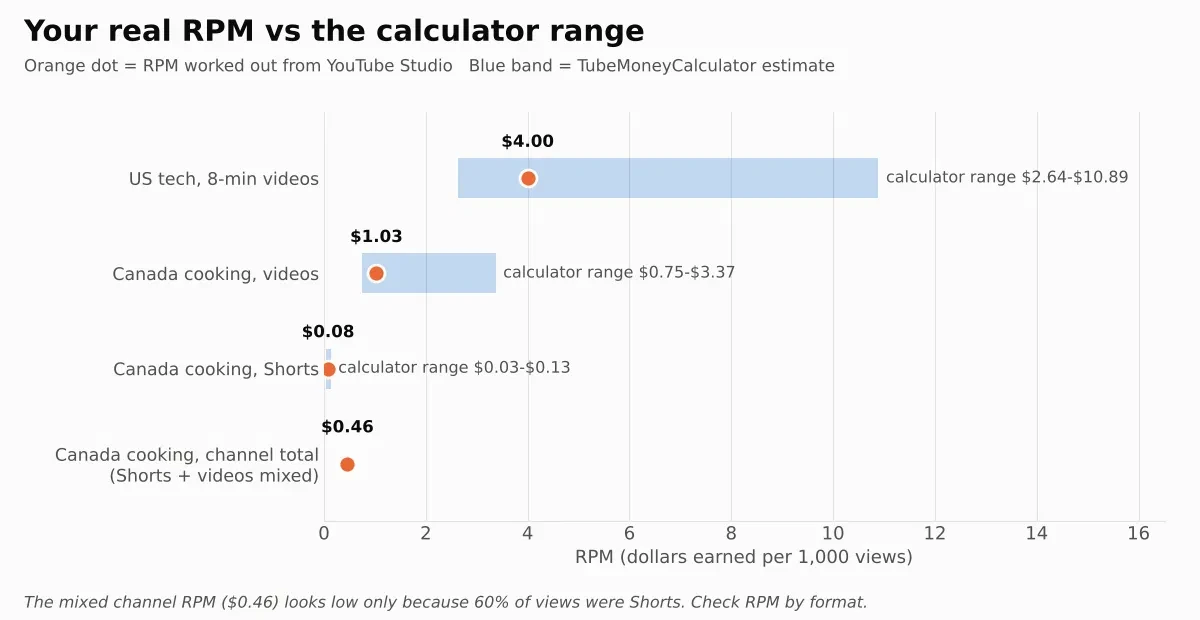
If you want to see how your own figure compares, the calculator’s “Know your real RPM” box takes your number and tells you whether it sits above, within or below the estimated range. Nothing is uploaded: your RPM stays in your browser.
Five reasons your Studio number looks lower than you expected
- Your mix includes Shorts. Shorts pay far less per view. Check RPM by format before drawing conclusions.
- Some views carry no ads. The model assumes 40% to 60% of views show an ad, so a channel with more non-monetized views earns less per 1,000.
- Your audience country. Viewers outside the US generally pay less per view. Canada is counted at 0.85× the US rate in our model.
- The season. January pays less than December for identical views. Our model uses 0.75× for January and 1.35× for December. See why YouTube earnings drop in January.
- It’s still an estimate. Adjustments for invalid traffic and claims can lower a figure after it first appears. Wait for the mid-month adjustment before judging a month.
A 5-minute monthly money check-up
Do this once a month, on the same day each month, so you’re comparing like with like:
- Open Analytics → Revenue and set the date range to the last 28 days.
- Write down the estimated revenue and total views.
- Work out your channel RPM: revenue ÷ views × 1,000.
- Open Content performance and note the Shorts and long-form split.
- Compare with last month’s numbers. If RPM fell, check the season and the mix before blaming the channel.
FAQ
Can I see someone else’s earnings?
No. Revenue is visible only to the channel owner in YouTube Studio and AdSense for YouTube. Any tool that claims to show another channel’s real income is estimating it from public data. See how accurate Social Blade’s earnings estimate is for why those estimates are rough.
Why does Studio show $0 for some videos?
Common causes are that the video is too new for revenue to have appeared yet, that it has no monetized views in the period you’ve chosen, or that it isn’t monetized at all. Check the video’s monetization status in Content before assuming a problem.
Is estimated revenue before or after YouTube’s cut?
Studio’s revenue figures are your share, after YouTube takes its portion. The 55% long-form and 45% Shorts splits are described in YouTube’s partner earnings overview. Use Studio’s number as your earnings, not a gross figure.
Why is my RPM different for every video?
RPM depends on the audience watching that video, its topic, its length, its country mix and the season. Two videos from the same channel can differ a lot for those reasons alone. Compare RPM across similar videos rather than across all of them.
Your next step
Open YouTube Studio, go to Analytics → Revenue, and write down your estimated revenue and views for the last 28 days. Work out your channel RPM, then split it by Shorts and long videos. Enter your figure in the Know your real RPM box on the TubeMoneyCalculator to see where it sits against the estimated range.
Studio steps and timings are as described on YouTube’s Help pages, checked October 28, 2026. Studio’s layout changes from time to time, so if a button has moved, look for the nearest equivalent. All calculator figures are estimates from our published methodology.